 miao.my
MIAO User Guide
Turn team workflows into your own apps. This guide is for business owners, app builders, workspace admins and team members. It follows the current MIAO workspace from sign-in through app creation, release, daily use and governance. The screenshots and HTML pages are illustrative prototypes with sample data; they explain the current product shape and boundaries and do not represent a live account.
Capability and boundary matrix
These states describe only what the website can trace to code, documentation or a public Issue. “Needs field verification” does not mean production business acceptance.
| Capability | State | Evidence | Boundary |
|---|---|---|---|
| Agent-assisted app building and controlled JSON UI | Current in code | Product boundaries · Source | Server-side schema, field and action validation; no arbitrary user source, SQL or shell execution. |
| UI drafts, publishing and version switching | Current in code | Preview and publish · Release Issue | Rolling back a UI version does not undo business records or schema already written. |
| State flows, business actions and background jobs | Current in code | Background jobs · Operations guide | Declared actions run with budgets, timeouts and server-side permissions; real model, mail and long-running execution still need field verification. |
| Credential-free HTTP(S) reads and declarative collection | Needs field verification | Integrations · External reads source · SSRF Issue #93 | Not general OAuth, a credential vault or arbitrary code execution; operators should restrict egress. |
| Public read-only publishing | Current in code | Public publishing source · Product boundaries | Returns only published pages, records, fields and images on the allowlist; no general public write-back. |
| Workspace, app and field permissions | Current in code | Members and permissions · Operations guide | The server rechecks membership, app roles and field authorization; knowing a URL grants no data access. |
| Backup, restore, upgrades and rollback | Needs field verification | Operations guide · Self-hosting | Back up before upgrades; database rollback is not automatic and recovery must be rehearsed in the target environment. |
| Visual branches, loops, retries and dry runs | Planned | Issue #116 | Planned work is not a current product capability. |
Data and deployment limits
| Limit | Current boundary | Evidence |
|---|---|---|
| File uploads | Up to 5 MB per file | README product boundaries |
| CSV/XLSX reads and imports | Up to 100 rows per read and import batch | README product boundaries |
| Controlled UI | Up to 12 validated pages with fixed field actions | README product boundaries |
| Record-level filtering and field masking | Planned, tracked for implementation | Issue #118 |
| Saved views and controlled filtering/sorting | Planned, tracked for implementation | Issue #119 |
| Self-hosting shape | One Go process with embedded UI, migrations and PocketBase; no multi-node HA, cloud SLA or certification promise | Operations guide |
Contents
- MIAO at a glance
- Get started
- Create an app
- Preview and publish
- Daily team work
- Change an app and its versions
- Data, files and exports
- Members and permissions
- Governance
- Troubleshooting
- Worked example
- Appendix: architecture
MIAO at a glance
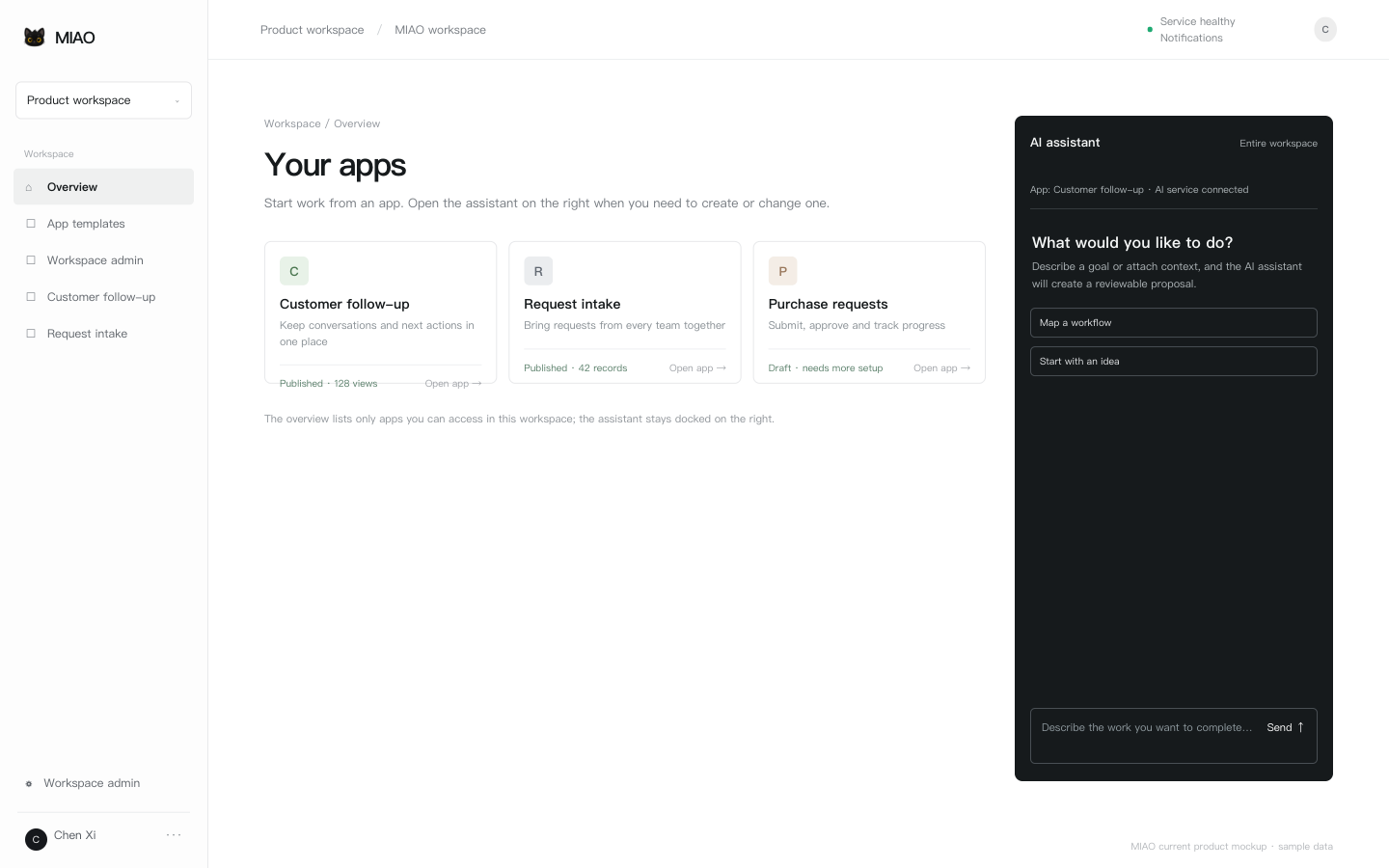
MIAO is a server-side Agent workspace for internal business operations. After sign-in, the overview lists apps available in the current workspace. Published apps handle daily work; draft apps are waiting for more configuration. When you create or change an app, open the pinned AI assistant on the right to describe a goal, attach context or answer follow-up questions.
The product has four clear entry points:
- Overview and templates: open an existing app or start from a template.
- AI assistant: create apps, draft screens, configure business actions, publish changes or query records.
- App pages: work in published lists, details, forms and job views.
- Maintenance views: open background jobs, data tables, app settings and workspace administration when needed.
Administrative actions create persistent run records. For creation, writes, publishing, wider access or bulk changes, MIAO shows a proposal and its impact for an authorized member to confirm. Generated model text never replaces the actual write receipt.
| Role | Main work | Read next |
|---|---|---|
| App builder | Describe requirements, review drafts, configure and publish apps | Create an app through Change an app |
| Team member | Enter, search and process records in published pages | Daily team work, Data, Troubleshooting |
| Workspace admin | Invite members, manage the space, review activity and usage | Members and permissions, Governance |
| Platform admin | Manage accounts, workspace metadata, platform settings and AI services | Governance, Architecture |
Get started
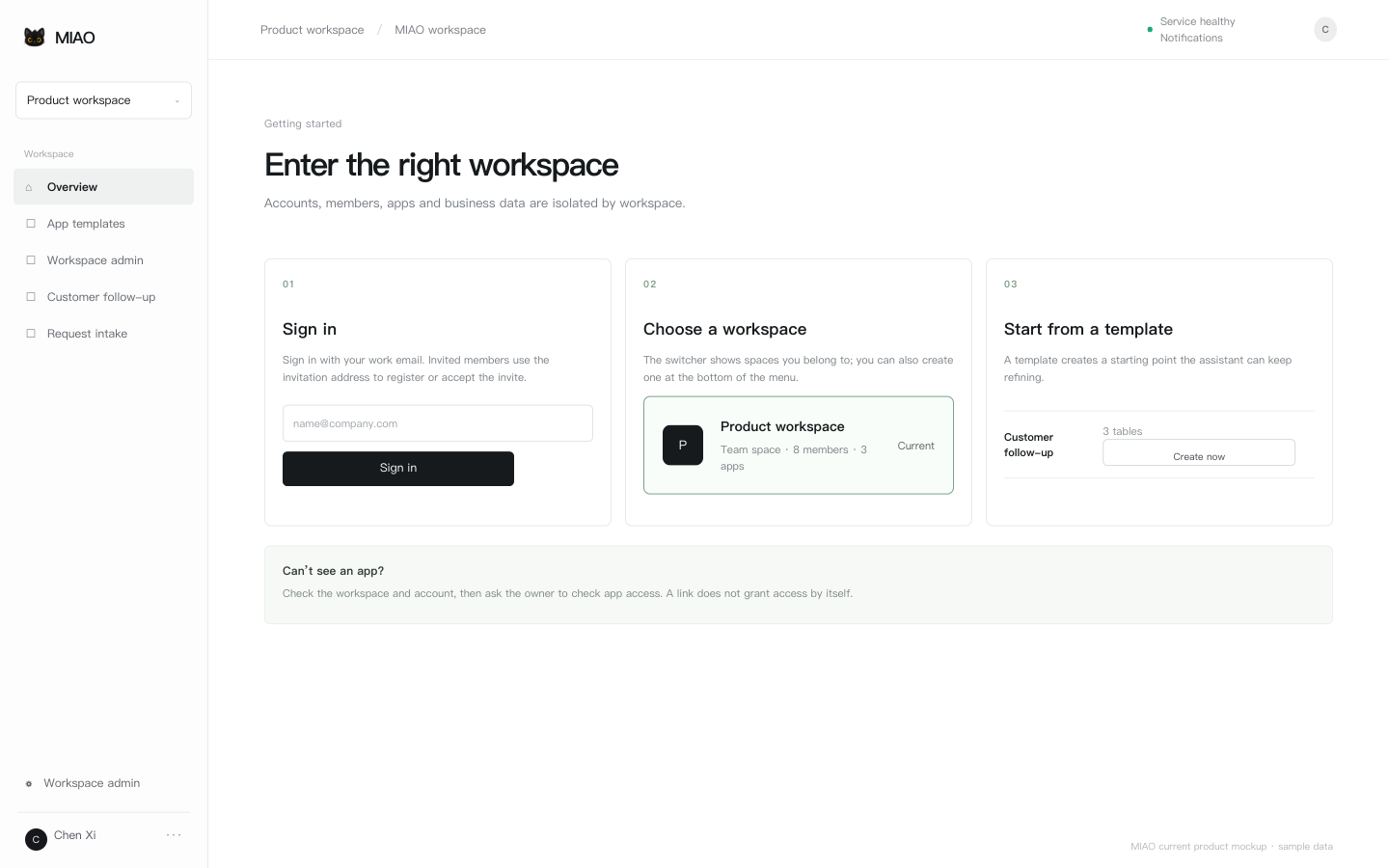
- Sign in at the MIAO address provided by your organization. Registration may be open, invite-only or closed. Complete email verification when it is enabled.
- After sign-in, choose the current space from the workspace switcher. Each workspace has its own members, apps, permissions and data; the last menu item can create another workspace.
- The overview shows apps you can access in the current space. Cards show the name, purpose, release state, recent activity and sample metrics.
- If no app fits, open App templates, choose a starting point such as Customer follow-up or Request intake, and ask the assistant to refine it.
After you switch workspaces, the app list, chat context, notifications and data are read again for the new space. Old links also re-check membership and app permissions; a link never grants access by itself.
Prepare your first request
Start with a bounded workflow that the team can repeat. State three things up front: who does the work, what must be recorded and what counts as complete. For example: “Sales record customers and the next contact date; owners review follow-ups each day; managers review this week’s progress.”
Create an app
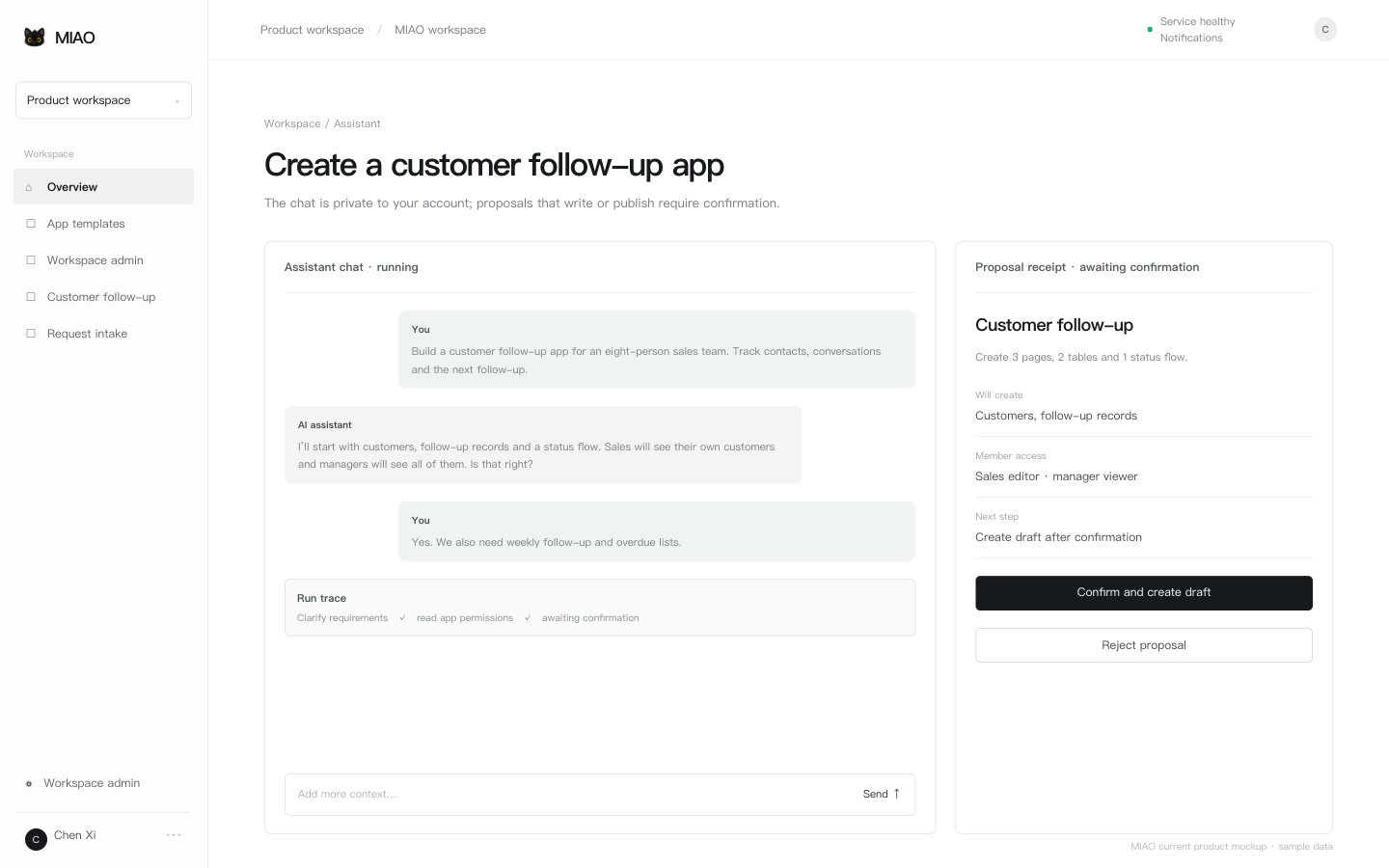
- Open the assistant from the overview and choose Entire workspace or a specific app as the chat context.
- Describe the goal, participants, data to save, visibility, and completion criteria. You may attach CSV, XLSX, text, Markdown, PDF or image references.
- The AI assistant asks necessary follow-up questions and shows its current stage, candidate actions and write confirmation state in a persistent run trace.
- Check the proposal’s app name, pages, tables, business actions, status flow and permissions. Only after confirmation will MIAO create a draft or write data.
Example request: “Build a customer follow-up app for an eight-person sales team. Sales enter customers, contacts, recent conversations and the next follow-up; managers see this week’s due and overdue items; sales only see their own customers.”
Drafts are rendered by the controlled schema v3 / json-render runtime. The platform does not execute submitted app source code, SQL or arbitrary code; pages, fields and actions pass server-side validation. File uploads are limited to 5 MB. CSV/XLSX reads and each import batch are limited to 100 rows.
Run records and confirmation
Assistant runs can be queued, processing, awaiting confirmation, successful, failed or awaiting verification. Closing the page does not cancel a run; reopen the app or the run detail from a notification to continue reviewing it. If a write result is unknown, verify the current record first; MIAO does not replay the original write automatically.
Preview and publish
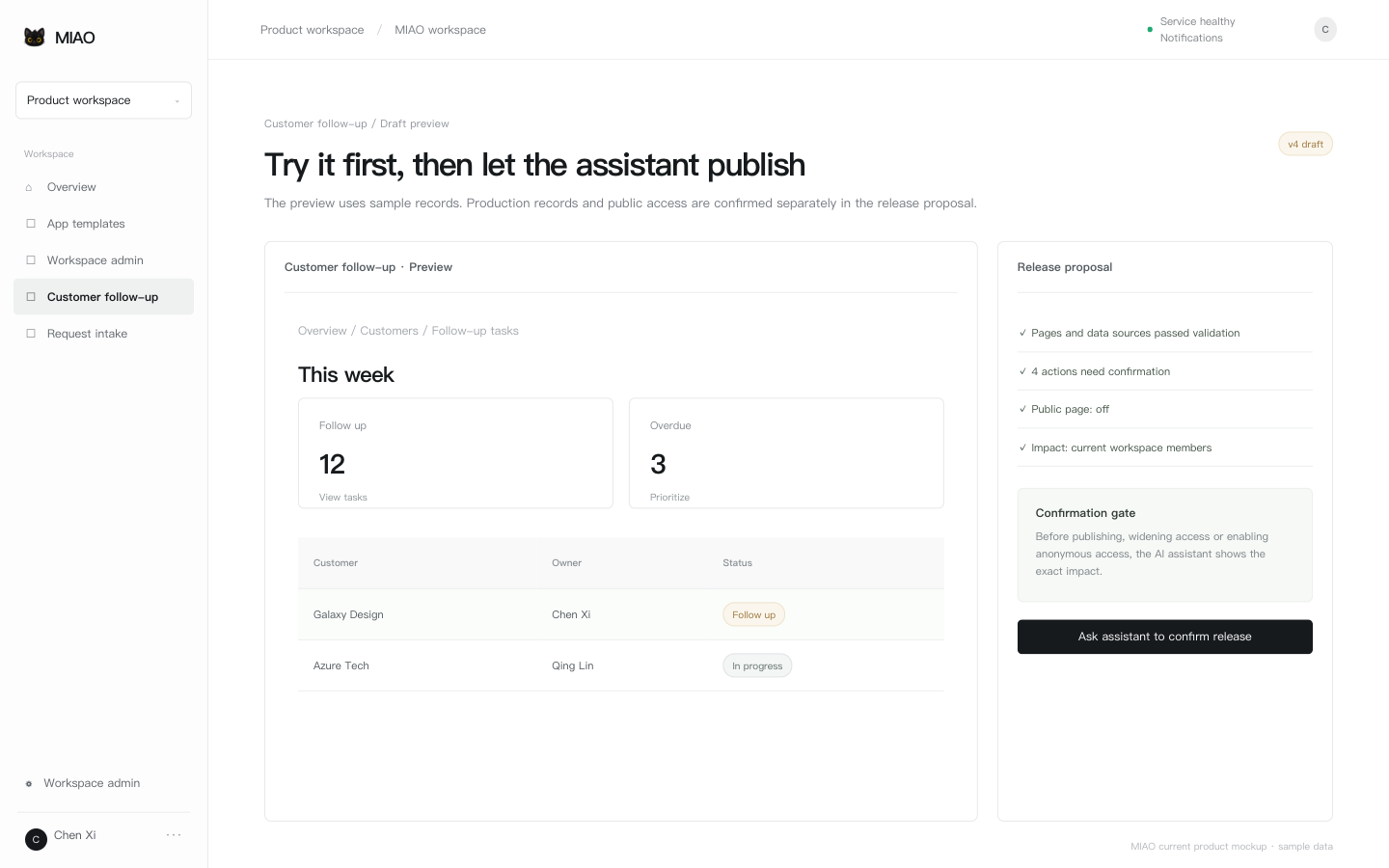
- Open the draft preview and check navigation, lists, details, forms, actions and empty states page by page. Preview records are sample data.
- Check data sources, field allowlists, actions, state transitions and member access. If anonymous access is needed, review the public page, public fields, release state and image authorization separately.
- Ask the assistant for a release proposal. It lists the version, impact, whether data will be written, whether anonymous access is enabled and the validation result.
- A member with publisher, owner or explicit release permission confirms the proposal. On success, the production app references the published version; on failure, the existing release continues to run.
Preview does not silently write production records. Publishing is a confirmed operation with permission checks, audit events and a persistent receipt. Public pages expose only explicitly authorized pages and records; ordinary files and unauthorized fields remain private.
Release checklist
- A team member can complete “open → find a record → act → save” without help.
- Every page data source, field and action has passed validation.
- viewer, editor, manager and publisher scopes match the real division of work; bulk changes also require
can_batch. - Sample data is visibly separate from real data, and empty states are present.
- If a public page is enabled, its slug, status values, SEO fields and image authorization are checked.
Daily team work
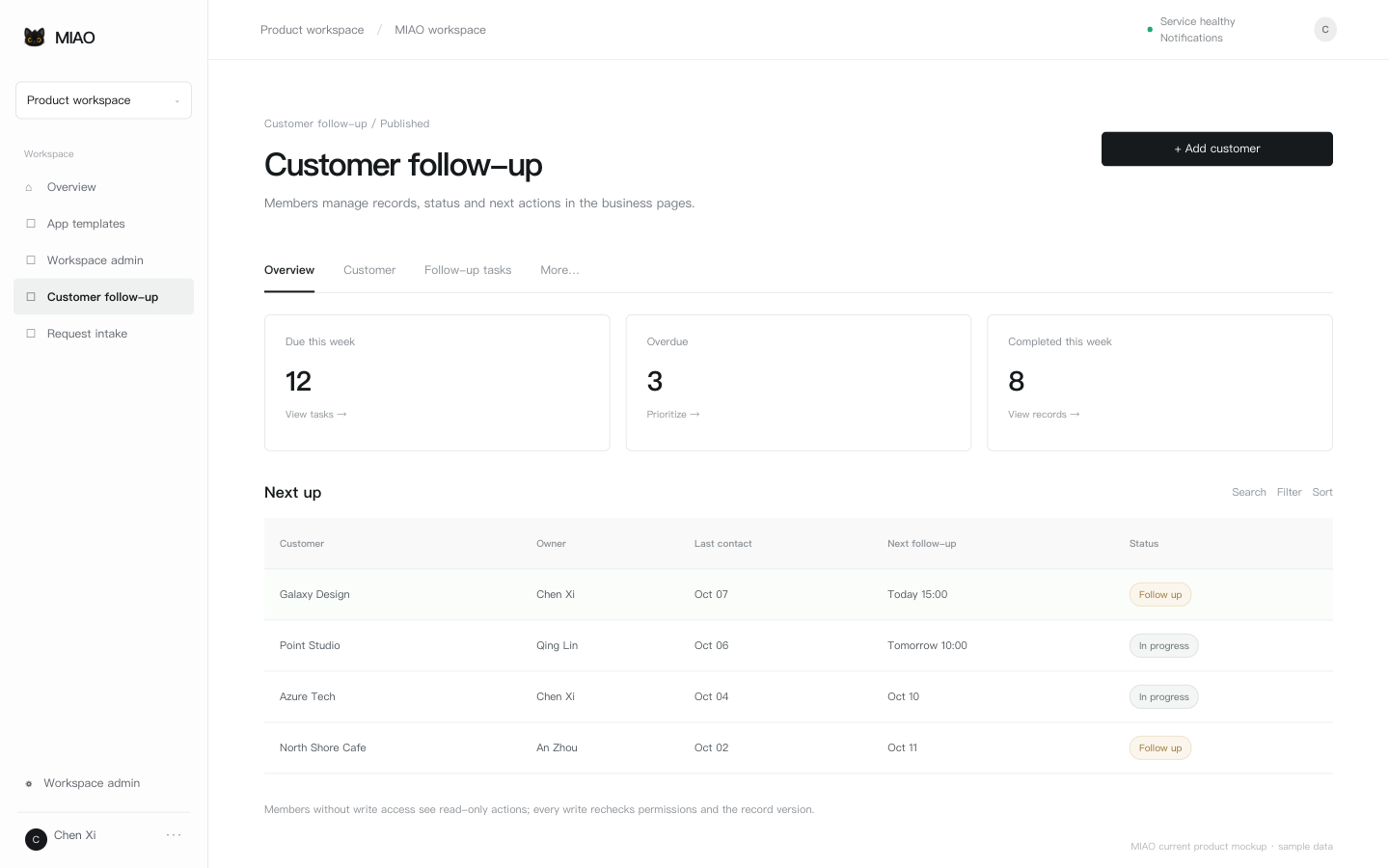
Opening an app takes members to its published business pages. A page may include an overview, list, detail, form, status actions and background job entry points. Members work in the business UI rather than opening an Agent chat for every record.
Find and process records
- Search, filter, sort and open a detail from the list.
- Use the declared buttons to add records, edit fields, advance a status, upload a file or run an enabled business action.
- On save, the server re-checks the workspace, app role, field validation and expected record version. On conflict, read the latest record before trying again.
- Use the page feedback to confirm the write. Deletes, public access and bulk changes show the object and impact and require confirmation.
Pagination, search and metrics use data authorized for the current account. Members without write access do not see executable edit actions. An app link can be shared with a colleague, but the colleague must still sign in and receive app access.
Background jobs, notifications and automation
The assistant can configure scheduled, due-date, status-change, new-record or authenticated external-event jobs. Jobs are saved as drafts first, and enabling or running them uses an explicit version. Recent runs, steps, write counts, notifications and failure reasons are available from Background jobs. In-app notifications call out runs that need confirmation, release results and member invites.
Declarative collection jobs may read credential-free HTTP(S) sources, then map, filter, deduplicate, store and notify according to their declaration. Each run keeps a receipt. External page content is always untrusted data and cannot expand job authorization.
Change an app and its versions
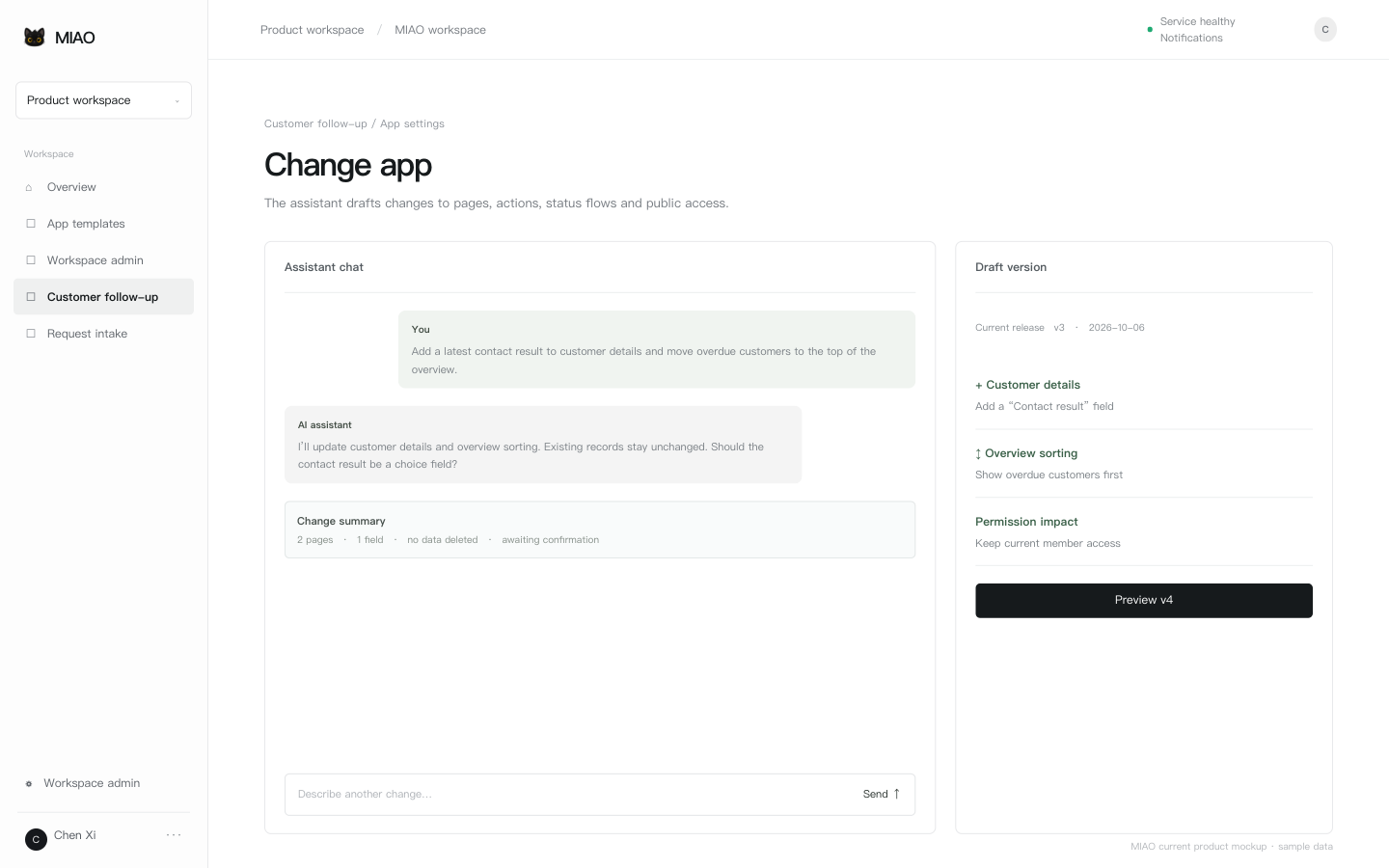
Describe the page, field, action, state flow or public access you want to change. For example: “Add a contact result to customer details and move overdue customers to the top of the overview.” The AI assistant reads the current app context and creates a change summary and a new draft version.
- Read the affected pages, tables, fields, actions and member scopes.
- Preview the draft and confirm the boundaries of additions, edits, migrations and deletes. Review a plan before any bulk write.
- An authorized member confirms the release. Version history, publisher, time, summary and run receipt remain available.
Rolling back a UI version does not undo business records already entered by members. Archiving hides an app from the workspace list while keeping its data; restoring it requires confirmation before the next release. Permanent deletion confirms and removes the app and its business data.
Data, files and exports
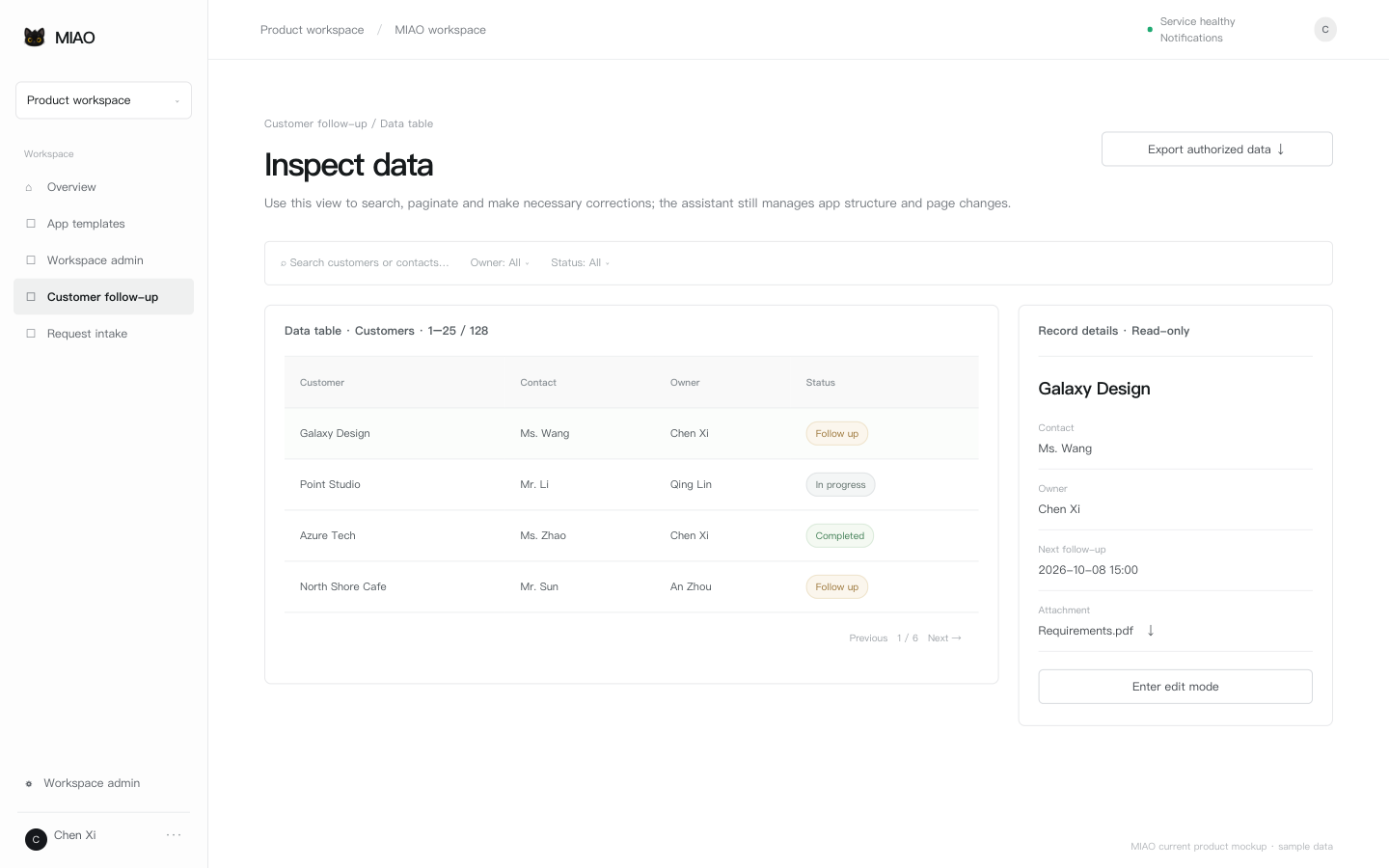
Open View data table from the app actions. This view supports table-level search, filtering, sorting, pagination and necessary corrections. The assistant still manages app structure, pages and business rules. Team members normally see the business UI rather than the underlying table structure.
File downloads re-check workspace, app, record and field permissions. Knowing a file address does not make it public; only image fields explicitly authorized by a public release use the public proxy path.
Imports, bulk changes and exports
- CSV/XLSX imports check field mapping, samples and error rows before writing; each batch is limited to 100 rows.
- Agent bulk changes first create a plan for 1–100 records, then execute after confirmation. Expired plans, changed permissions or changed records block the write.
- Business actions support controlled cross-table create/update steps with input references and idempotency keys; arbitrary SQL, code or network writes are not supported.
- Workspace exports contain only data the initiator can access. Store and transfer export files under the organization’s data policy.
Members and permissions
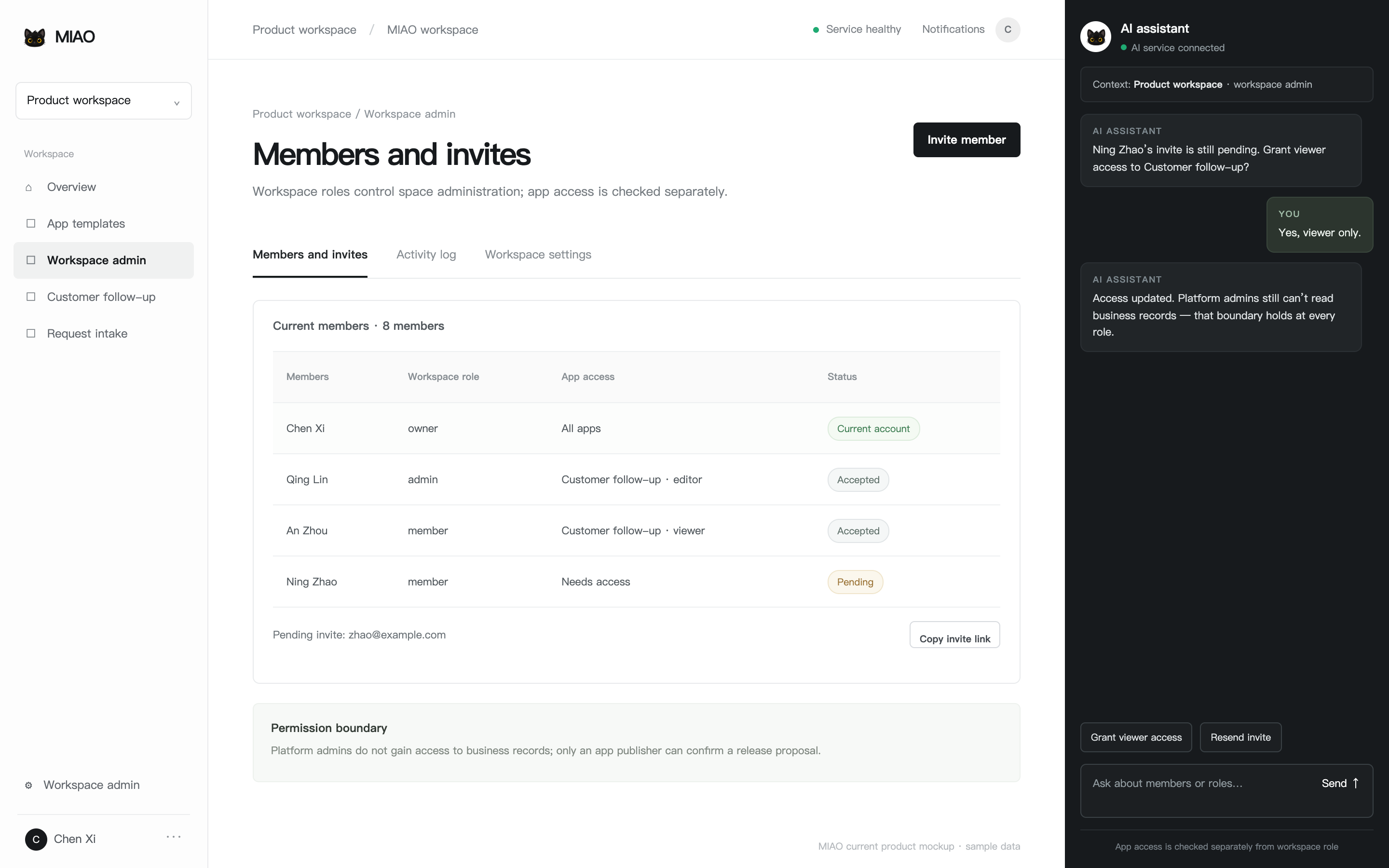
Workspace administration includes Members and invites, Activity log and Workspace settings. Owners manage the space and app access, admins can help with invites and daily administration, and members use the apps granted to them. App permissions are separate: viewer, editor, manager and publisher. Bulk changes also require can_batch.
| Task | Who handles it |
|---|---|
| Invite members and revoke pending invites | owner or admin |
| Change member roles, remove members and view the complete activity log | owner |
| Read business records | a member with access to the app |
| Add or edit ordinary records | editor or a higher app role |
| Manage drafts and app settings | manager, publisher or owner |
| Confirm publishing and anonymous access | publisher, owner or explicitly authorized run operator |
| View platform accounts, workspace metadata and AI services | platform admin; this does not grant business content access |
Invite links are bound to the invited email and expire after 24 hours. A removed member can still use other spaces with the same account; old pages, links and Agent runs re-check access.
Private chat content between a person and the AI assistant is visible only to that person by default. App version summaries, job receipts and audit records follow their own permissions. The Agent cannot bypass the current member identity to write data.
Governance
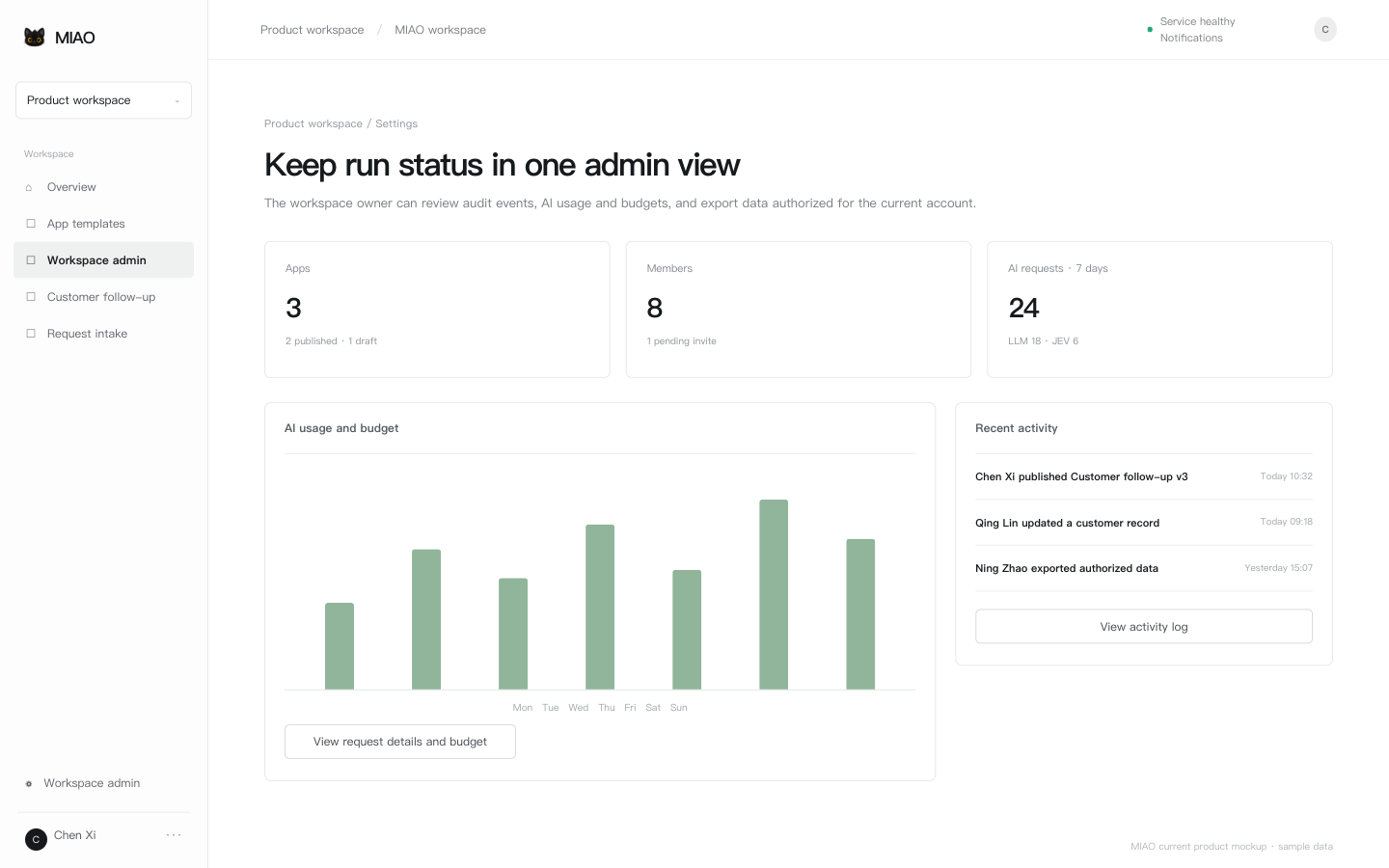
Workspace settings
Owners can review member roles, AI usage and budgets, activity logs and authorized data exports in workspace settings. LLM and JEV usage are tracked separately; request count, token count and vendor billing are different measures.
Platform admin
Platform admins open a separate admin area from the account menu to view users, the workspace directory, basic settings, AI usage, platform audit and AI services. They can manage accounts and runtime configuration, but cannot browse business records, file contents or another member’s private chat content.
Self-hosting responsibilities
The self-hosting operator owns the domain and HTTPS, registration and email policy, AI/Jev keys, platform-admin list, backup directory, retention period and recovery drills. Keep configuration keys server-side; never put plaintext secrets in screenshots, exports or Git. The current Go service runs as a single instance. In production, check the process, SQLite, public endpoints and an authenticated business flow separately.
Troubleshooting
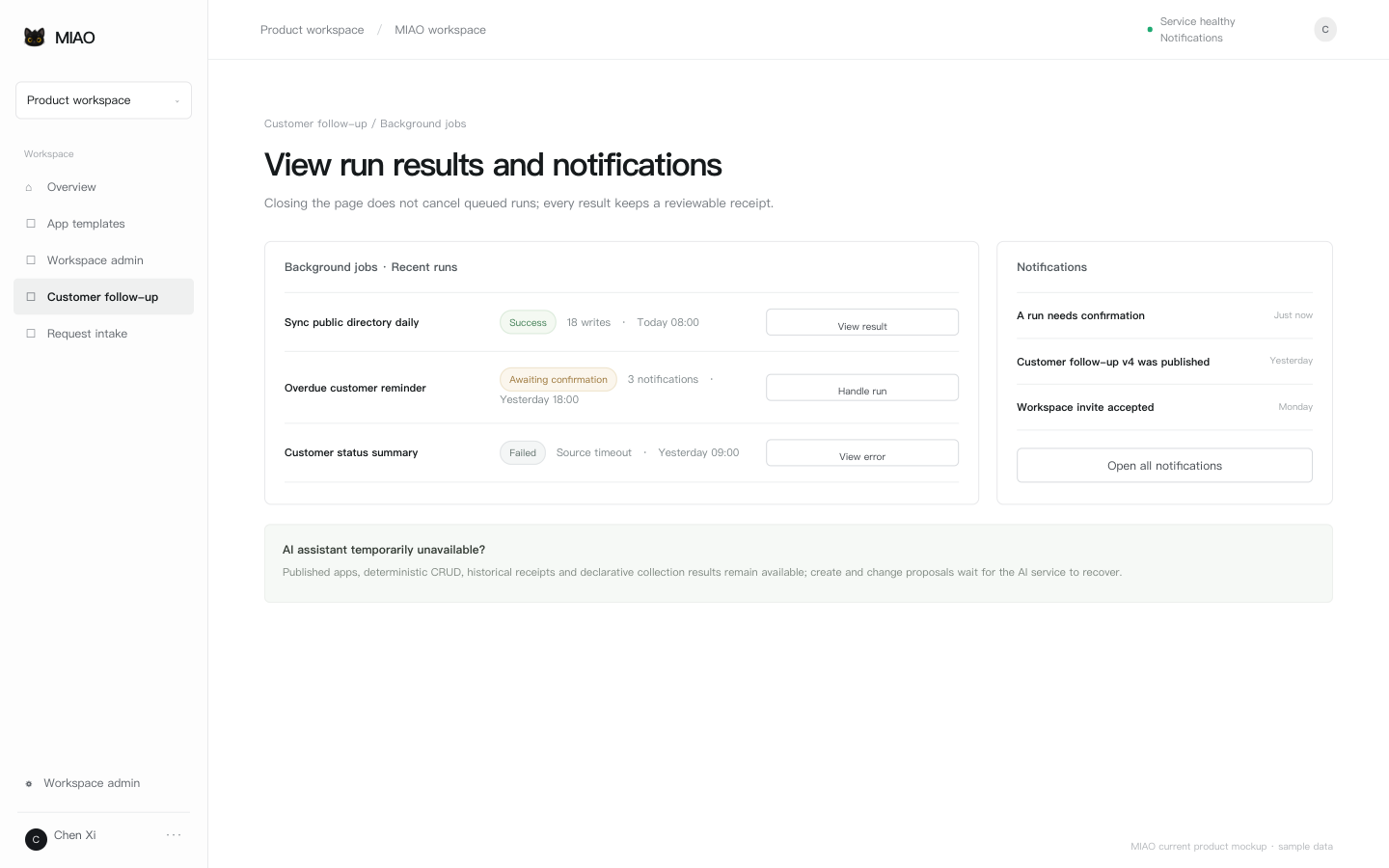
A colleague cannot open an app
Confirm the email and workspace, then ask the owner to check the app access list and viewer/editor role. A link does not grant access automatically.
A draft is missing from the published app
Drafts, previews and releases are separate. Open the assistant run trace and release proposal and confirm that publishing completed. If publishing failed, the previous version continues to run.
A record save failed or conflicted
Check field feedback, permissions and network state. On a concurrent conflict, read the latest record and submit again; do not refresh away unsaved input.
A background job is waiting or failed
Open Background jobs to review the run state, version, steps and error receipt. A run awaiting confirmation needs an authorized member. Source timeouts, insufficient budget or a paused script do not replay an unknown write.
The AI assistant cannot answer or has no quota
Review workspace AI usage and budget, the platform AI service status and recent requests. When the model is unavailable, published apps, deterministic CRUD, historical receipts and available collection results remain accessible.
I cannot find a data table or public page
View data table appears only when the app declares the data_management capability. Without that entry, the assistant can still query underlying data within permission. A public page requires a release, public policy, authorized data-source fields and the right release state.
A release, delete or write result is unknown
Stop follow-up actions, then open the run detail and audit record. Compatible UI versions can be rolled back. Verify the current record through the verification endpoint before sending anything again.
Worked example
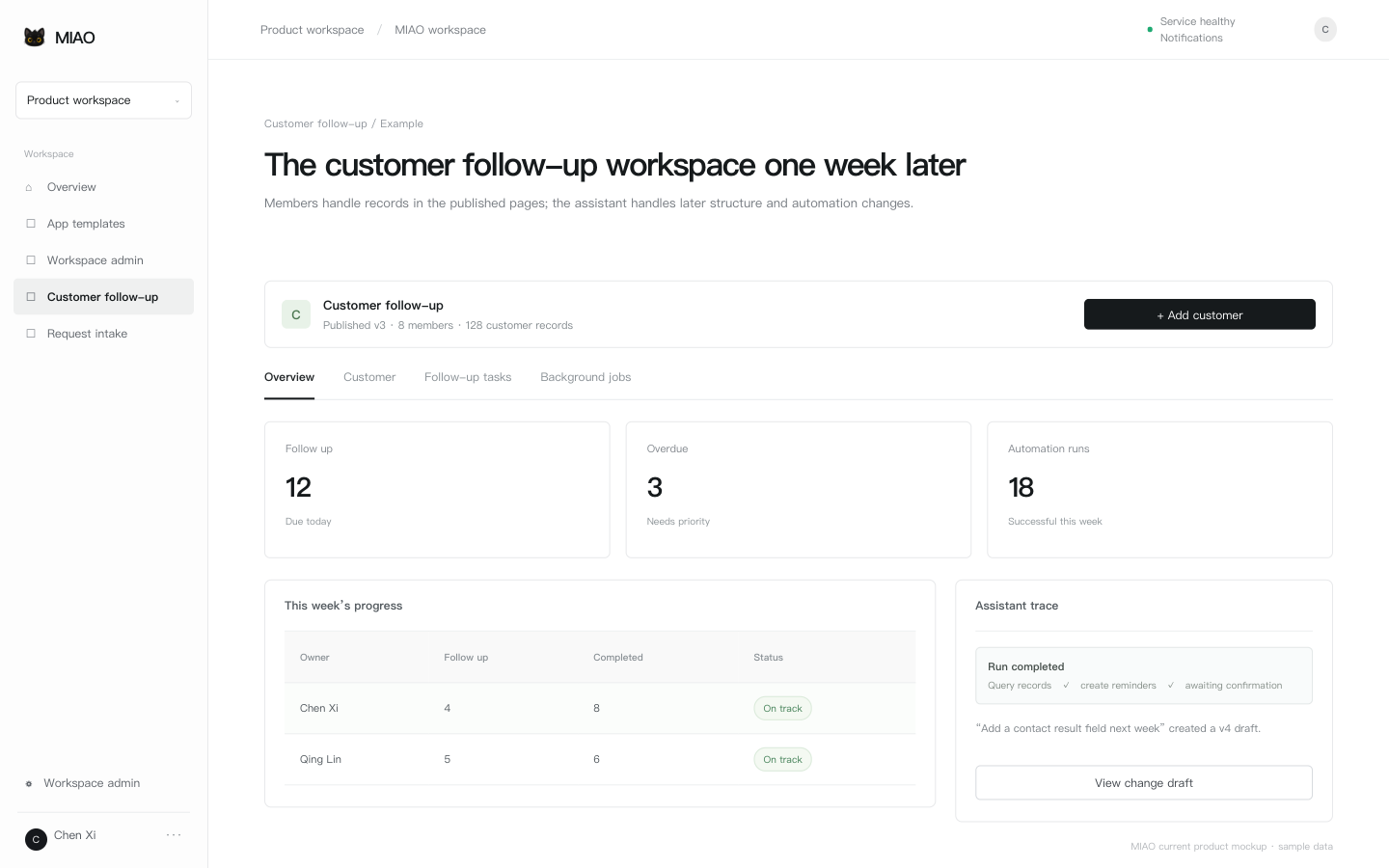
Using Customer follow-up as an example, a complete workflow looks like this:
- Start: The owner describes sales, managers, customers, conversations and next actions in the assistant. The AI assistant asks about visibility and what “overdue” means.
- Draft: The proposal creates customer and follow-up tables, a status flow and an overview page. The owner confirms and creates the draft.
- Publish: The owner previews create, edit, status and public-access behavior. A member with publisher access confirms the release.
- Work: Sales add customers, log conversations and advance status in the published pages. Managers use the overview to review due and overdue items.
- Automate: Configure daily public-directory collection and overdue reminders, then review writes, notifications and failure receipts for every run.
- Iterate: Ask the assistant to add a contact-result field a week later, review the v4 diff and publish after confirmation. Existing records remain unchanged.
- Govern: When a member leaves, hand off customer and app ownership, remove workspace access, and use activity logs and authorized exports for the handover.
The same pattern works for request intake, project issues and purchase requests: define the real business loop first, then extend it with tables, pages, actions, state flows and jobs.
Appendix: architecture
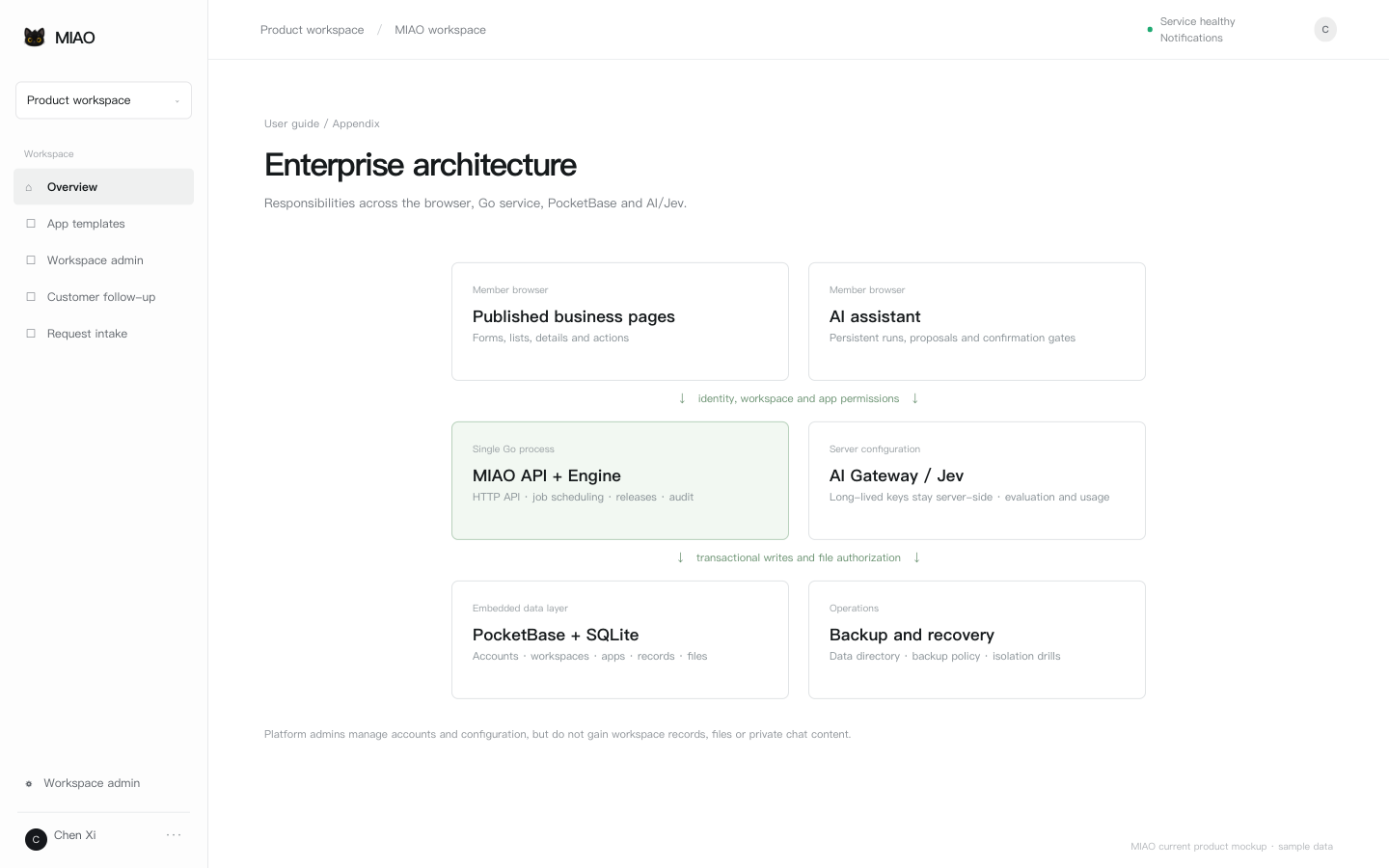
MIAO currently uses one Go process for the HTTP API, embedded PocketBase, browser UI and background workers. The browser sends the current identity and workspace context; the server re-checks member, app and field permissions.
| Component | Responsibility | Enterprise concern |
|---|---|---|
| Browser workspace and published runtime | Render app pages, forms, records and job receipts | Read only data authorized for the current account; never execute user source |
| AI assistant and persistent Engine | Handle requirements, proposals, confirmation, queries and controlled writes | Chats are isolated by account; model text never replaces a write receipt |
| MIAO Go API | Identity, workspaces, apps, versions, jobs, public releases and audit | Check member and app permissions on every request |
| PocketBase + SQLite | Accounts, workspaces, app definitions, records, files and migrations | Data directory, backup, recovery and single-instance boundary |
| AI Gateway / JEV | Relay model requests, evaluate proposals and record usage | Long-lived keys stay server-side; AI outages do not block deterministic business pages |
| Static website and this guide | Provide public overview, instructions and mockups | Deploy separately from business services |
Published apps reference a released schema v3 / json-render version; drafts, previews and production pages have clear boundaries. Public pages return only explicitly authorized record fields and images. Platform administration is separate from workspace business permissions, and file downloads and exports are authorized again.
Source, API reference, deployment and backup commands are in the MIAO application repository. This website repository contains only the public website and user guide.
A self-hosting team can add its login address, support contact and internal data policy before sharing this guide.